Add a background image to a timer
Applies to: TreStack Timer
Updated: 5 November 2026
- Stored in: Your store's own Shopify Files
- Sources: Your upload, or the suggested library
- Clickable: A button or the whole bar, on landing timers and bars
A timer's background can be an image instead of a color or gradient. The image lives in your own Shopify Files and is served from there.
Set it up
- Open the timer in TreStack Timer and go to the Design tab.
- In the Card section, set Background to Image background.
- Upload one of your own, which the app puts in your store's Shopify Files, or pick one from the suggested library, which is imported into your Files too.
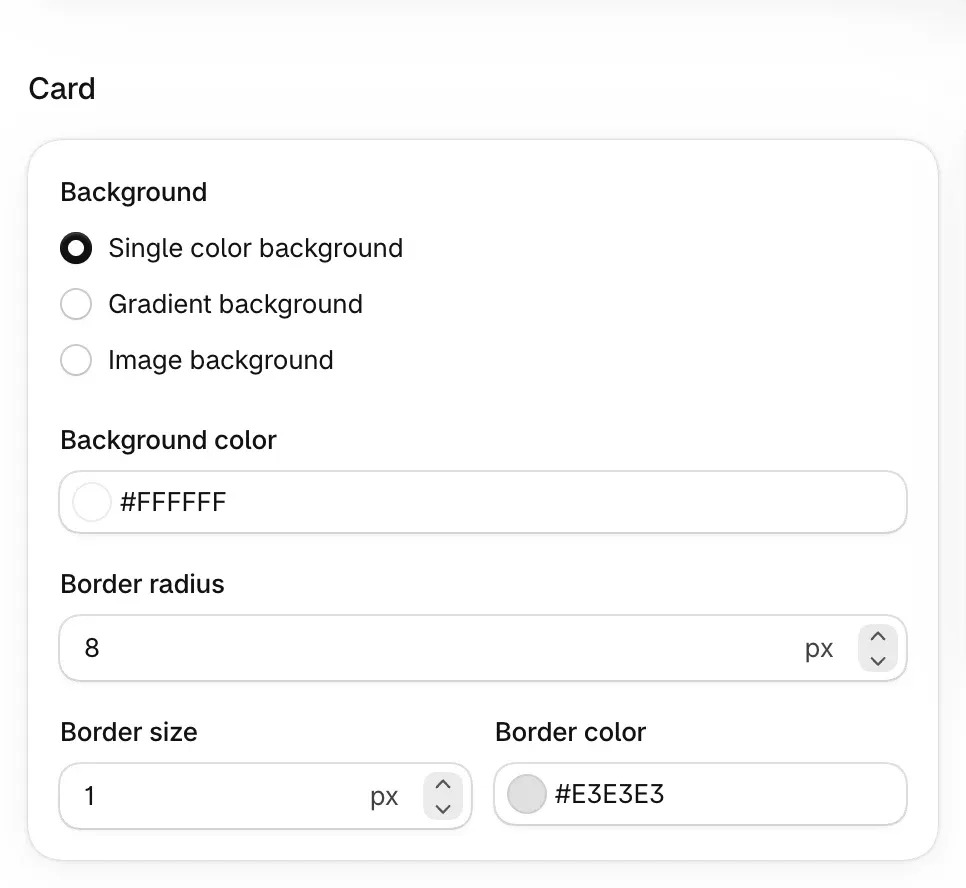
- Check the live preview. Adjust the text colors so the numbers stay readable over the image.
- On a landing timer or a bar, add a call to action: a button, which links to your home page by default, or make the whole bar clickable.
- Save, or choose Publish if the timer is not live yet.
Check it on your store
Open a page the timer shows on, on a phone and on a computer, and check the numbers read clearly over the image. On a landing timer or bar, use the button or the bar and check it opens the page you set.
Good to know
- Your Files, your images. Uploaded images stay in your Shopify Files, also after an uninstall. Delete them there if you no longer want them.
- One measurement, one theme. Our Lighthouse run on Shopify's Horizon theme, with a product timer that had a background image and a web font, showed no measurable drop in the performance score. That is one page on one theme, not a promise for every store.
- Clicks are counted. Clicks on the button or the bar show in the timer's analytics, with the click through rate.
The rest of the design controls are in TreStack Timer, setup and settings.
Change a timer's layout, colors and font
Style a timer on the Design tab: one of three layouts, a color preset or your own colors, a gradient, your theme font or a web font, and the labels under the numbers.
Read a timer's analytics
What impressions, clicks, click through rate, dismissals and completions count for each timer, how to pick a date range, and where the 30 day summary on Home comes from.