Set up a product page timer
Applies to: TreStack Timer
Updated: 5 November 2026
- Shows: Below the Add to cart button
- Per page: One product timer in the automatic spot
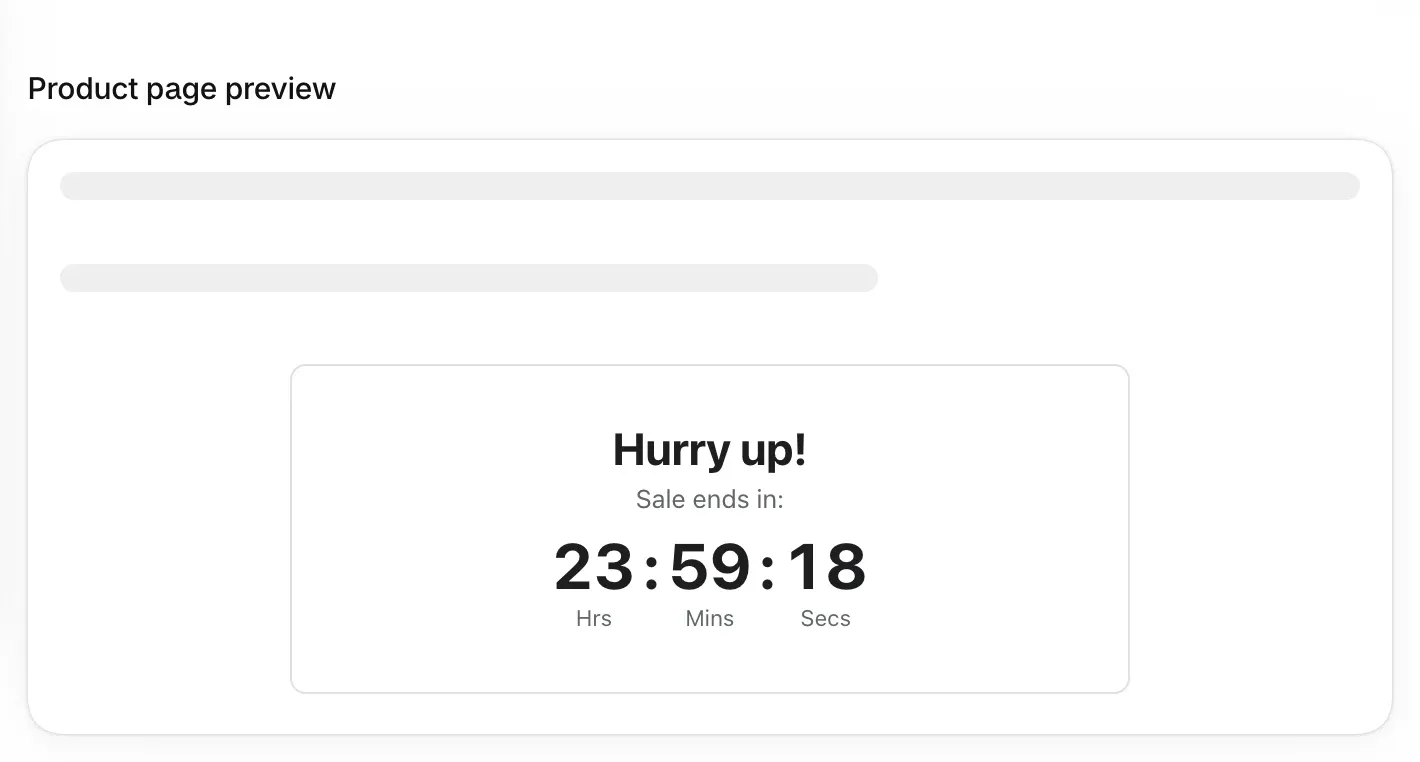
A product page timer sits below the Add to cart button on the product pages you choose. It needs no app block: once the app embed is on, the timer finds its spot by itself.
Set it up
- Check that the app embed is on. The app Home shows its status, with a button that opens the theme editor at App embeds. Turn it on and save the theme.
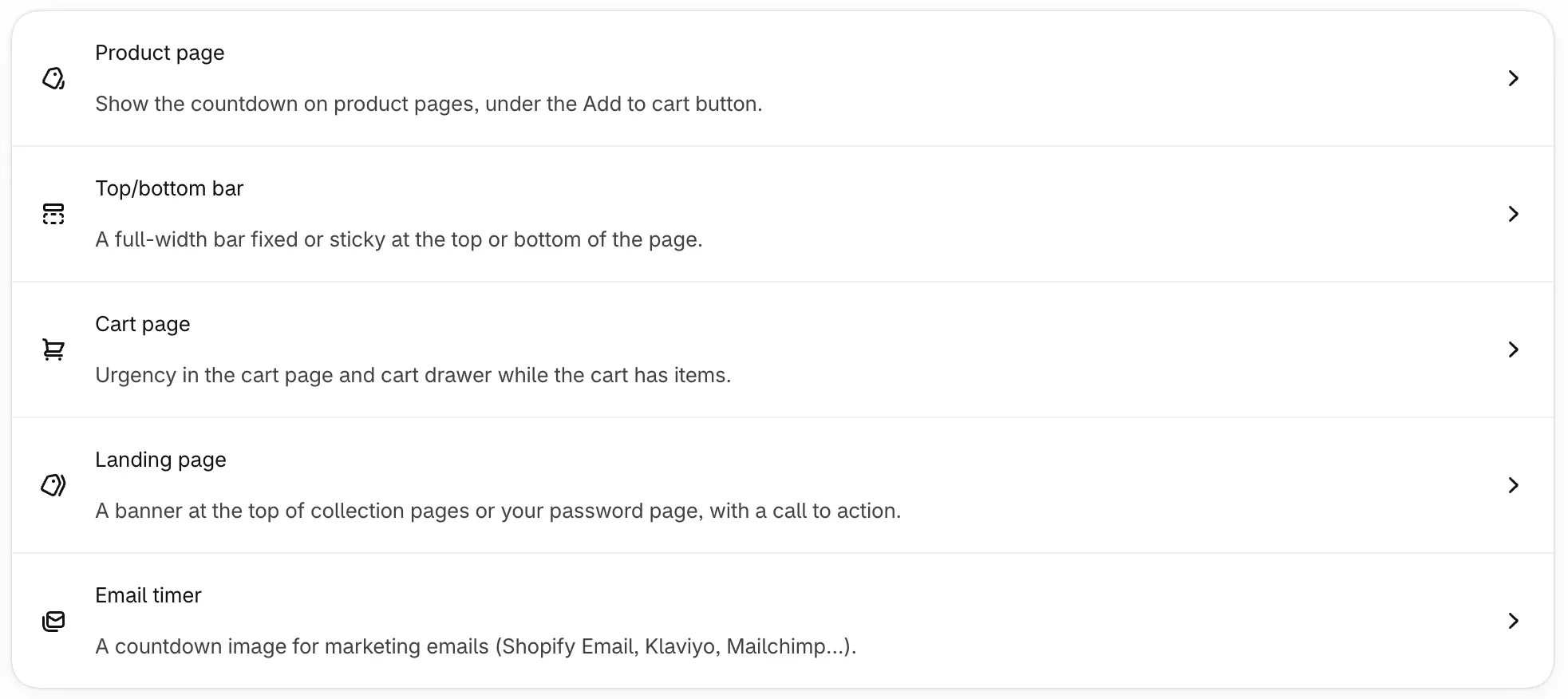
- Choose Create timer and pick Product page.
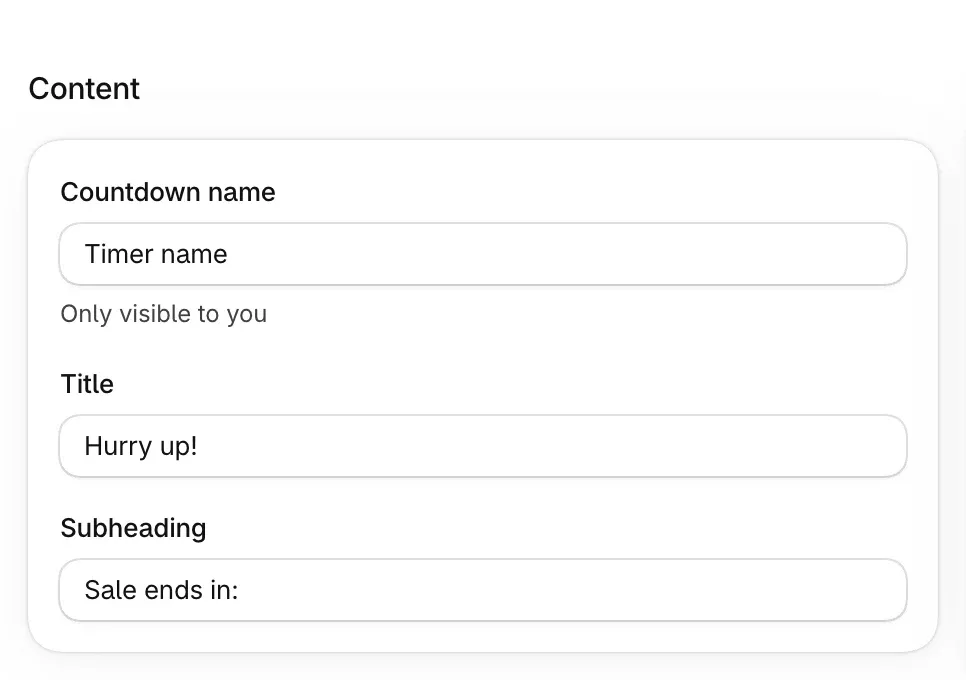
- On the Content tab, write the text, set the countdown and choose what happens once it ends. A new product timer counts down to a date one day out.
- On the Design tab, start from one of the 20 color presets and adjust it. The live preview beside it uses the same rendering code as the storefront.
- On the Placement tab, choose where it shows: all products, chosen products, products in chosen collections, or products with the tags you give. Choose this first, because changing the placement clears the products, collections and exclusions chosen for the old one.
- Add the products or collections from the Shopify picker. With all products, exclude the products that should not show it.
- Choose Publish.
Check it on your store
Open a product the timer targets, in a normal browser window and on a phone. The timer sits at the end of the Add to cart form. Then open a product it does not target and check that it is not there. A publish reaches the storefront after a short delay, so reload, or try a private window, if it does not show at once.
Good to know
- One product timer per page. When several match, a tag timer beats a chosen products timer, which beats a collections timer, which beats an all products timer. The older timer wins a tie.
- Tags ignore capital letters. A tag in capitals matches the same tag in lower case.
- Somewhere else on the page? Set the placement to Custom position and place the app block, as in Place a timer anywhere with an app block.
- Page builders may use their own Add to cart form, which the automatic spot may not find. Use a custom position there.
Every placement option and the priority rules are in Placement, countries, and translations.
Common questions
Short answers to what merchants ask most about TreStack Timer: timer types and countdown modes, time zones, where timers show, cart and email timers, price and views, themes and uninstalling, each with the page that explains it in full.
Set up a countdown bar across your store
Run a countdown in a bar at the top or bottom of your pages, with a button or a clickable bar, an optional close button, and the pages it should skip.