Translate a timer's text
Applies to: TreStack Timer
Updated: 5 November 2026
- Languages: The ones your Shopify store has
- Missing translation: Your store default language
A timer's text can be written once for each of your store languages. Shoppers see their language, then your store default language where a translation is missing.
Set it up
- Add the languages you sell in to your store in Shopify first. The app reads your store languages, so a language Shopify does not have will not be offered.
- Open the timer in TreStack Timer. On the Content tab, write the text in your default language. This is what any language without a translation falls back to.
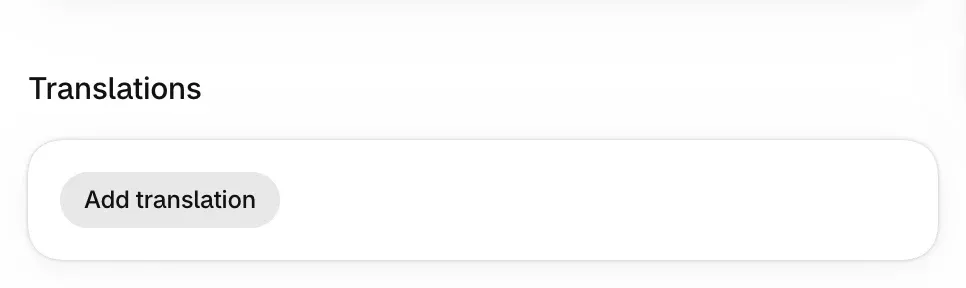
- In the Translations section, choose Add translation and fill the text for each other store language you sell in. Leave a language empty to show the default text there.
- Check the live preview beside the form, then choose Publish.
Check it on your store
Open a page the timer shows on in your default language, then switch the storefront to another language with your store's language selector and reload. The timer text follows. Switch to a language you left empty: the default text shows.
Good to know
- A publish takes a moment. A save reaches the storefront after a short delay, so reload once if a translation you just published does not show.
- The close button is English. The close button on a bar is labelled Close in English for screen readers, and is not translated yet.
- Only your store languages. The app reads the list from Shopify. Add a language there, then come back to fill it in.
How translations sit with placement and countries is in Placement, countries, and translations.
Show a timer only in some countries
Target a timer at the countries you choose, and run one sale for most of the world and its own version for one market, without either showing twice.
Change a timer's layout, colors and font
Style a timer on the Design tab: one of three layouts, a color preset or your own colors, a gradient, your theme font or a web font, and the labels under the numbers.