How-to guides
Give each visitor their own countdown
Run a fixed number of minutes for each visitor, kept in their browser, and know what starts it again and what happens when it ends.
Applies to: TreStack Timer
Updated: 5 November 2026
At a glance
- Counts: A fixed number of minutes per visitor
- Kept in: That visitor's browser
- At zero: Hides for that buyer by default
Fixed minutes gives each visitor their own countdown. It starts when they first see the timer and carries on across page loads in that browser.
Set it up
- Create a timer or open one.
- On the Content tab, choose Fixed minutes.
- Enter the number of minutes. It is 120 by default, and 15 for a cart timer.
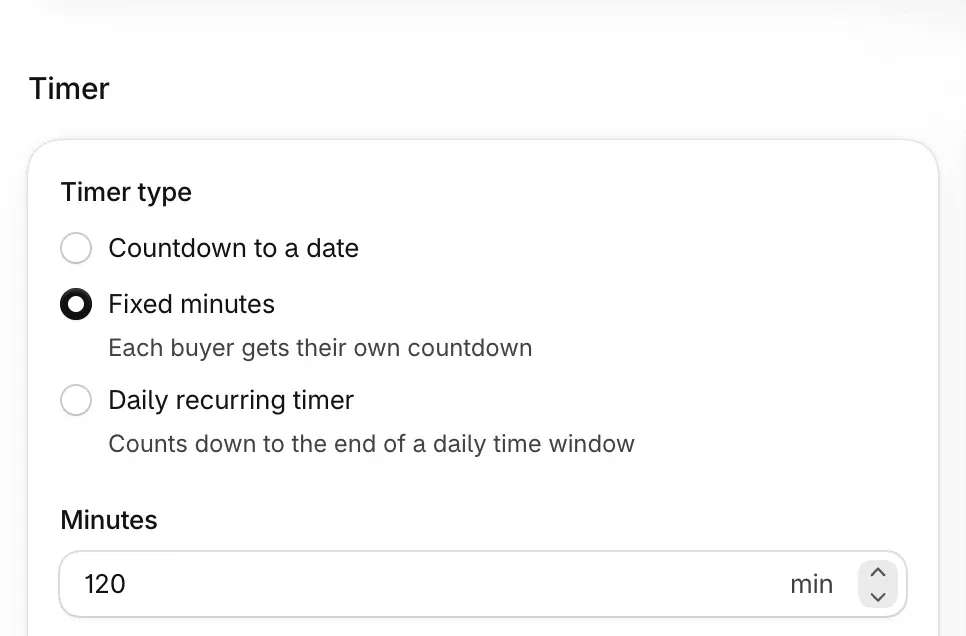
- Choose what happens once it ends: hide for that buyer, which is the default, repeat the countdown, show a custom title, or do nothing.
- On the Design tab, check the end state in the live preview. A timer set to hide shows dimmed and marked as hidden for the buyer, rather than vanishing from your screen.
- Set where it shows on the Placement tab, then choose Publish.
Check it on your store
Open a page where the timer shows and note the time left. Reload, then open another page: the countdown carries on. Open the same page in a private window: a new countdown starts there.
Good to know
- What starts it again: another browser or device, a private window, cleared site data, and any edit to the timer, which starts every visitor again.
- Repeat is never the default. A countdown that starts over tells shoppers about a deadline that is not real, so choose it only when the offer really renews. The editor says so when you pick it.
- Nothing is stored on our servers. The start time is kept in the visitor's own browser, in local storage, with no cookies.
- Cart timers always use fixed minutes: see Cart page and cart drawer timers.
All the countdown modes and their end choices are in TreStack Timer, setup and settings.