Change a timer's layout, colors and font
Applies to: TreStack Timer
Updated: 5 November 2026
- Layouts: Standard, Balanced and Inline
- Presets: 20 color presets, or your own colors
- Preview: Same code as the storefront
Every timer is styled on its own, on the Design tab, with the live preview beside it. The preview uses the same rendering code as the storefront, so what you see is what shoppers get.
Set it up
- Open the timer in TreStack Timer and go to the Design tab.
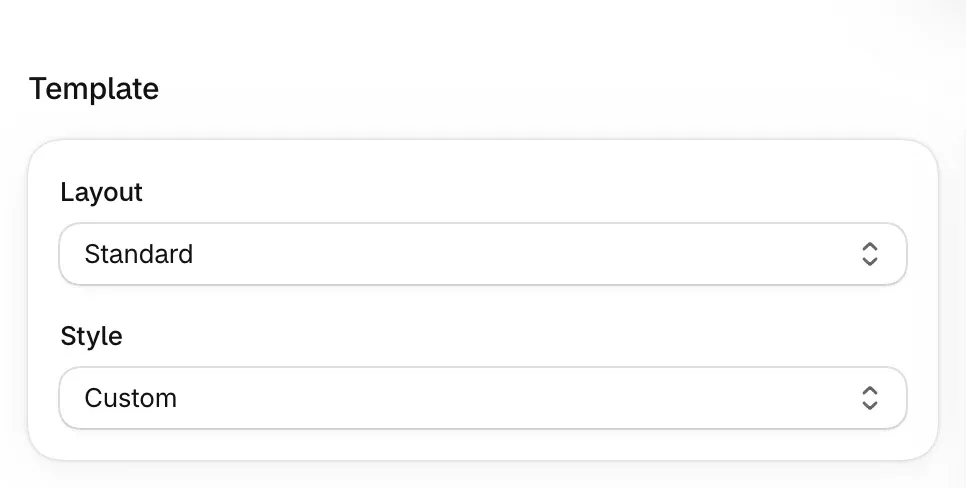
- Under Template, pick a Layout: Standard, Balanced or Inline.
- Start from one of the 20 color presets. A preset changes the colors and the background and keeps the rest of your settings.
- Adjust any color by hand. Custom colors take transparency, and the background can be a gradient instead of a single color.
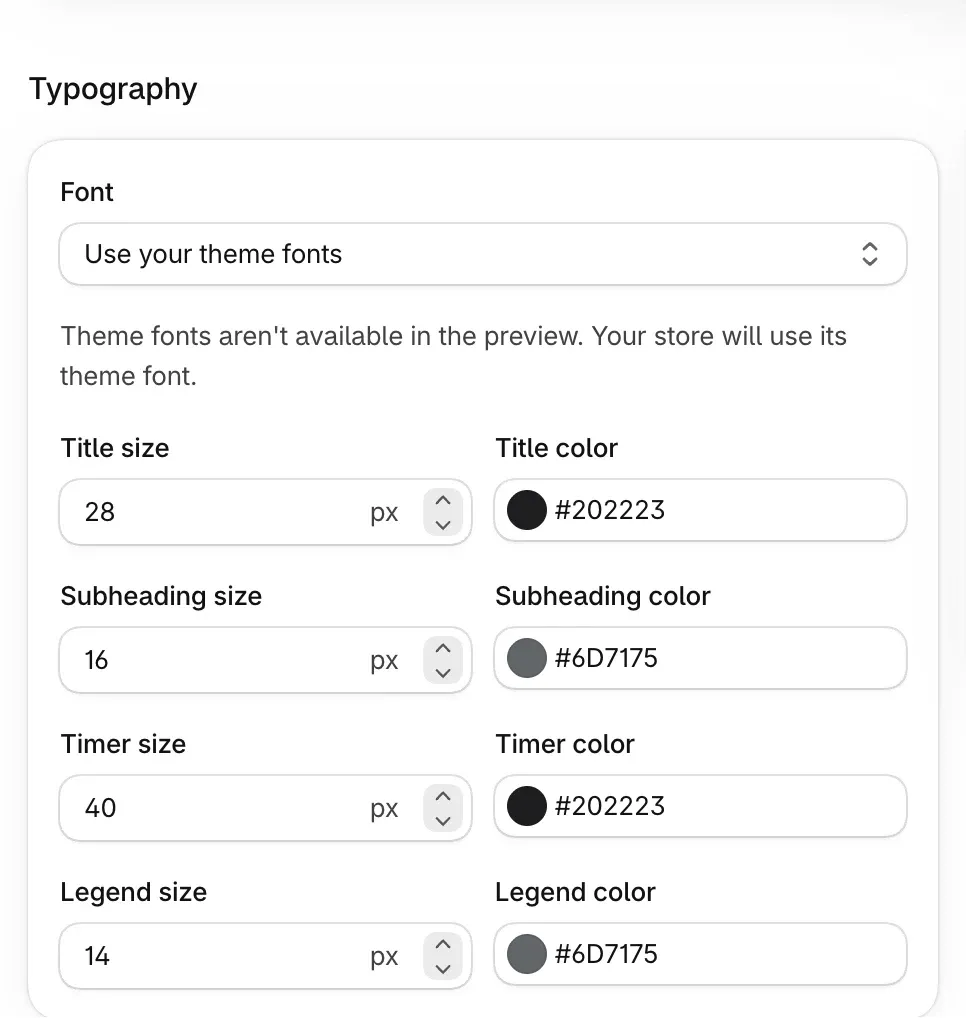
- Choose the font: Use your theme fonts to follow your theme, or one of the bundled web fonts.
- Set the labels for days, hours, minutes and seconds. They read Days, Hrs, Mins and Secs by default.
- The days column hides itself while it reads zero. Turn that off if you want it to show 00 days.
- Save, or choose Publish if the timer is not live yet.
Check it on your store
Open a page the timer shows on, on a real phone as well as a computer. A resized desktop window is not the same as a phone. If the timer runs off the side of a narrow screen, try the Inline layout or smaller digits.
Good to know
- Prefer the theme font or a web font. A system font shows only on devices that have it installed and falls back on the rest. The bundled web fonts load wherever the timer shows, and only the characters your timer text uses.
- Live timers change for everyone. A save on a published timer reaches the storefront after a short delay. On a fixed minutes timer, an edit also starts every visitor's countdown again.
Every design control and its default is in TreStack Timer, setup and settings.
Translate a timer's text
Write a timer's text for each of your store languages, so shoppers read it in their language and see your default language wherever a translation is missing.
Add a background image to a timer
Upload a background image to your store's Shopify Files or pick one from the suggested library, and make a landing timer or bar clickable with a button.