Change the discount name shown at checkout
Applies to: TreStack Bundles, every plan
Updated: 5 November 2026
- Set in: The deal's Settings section, Discount name (shown in cart/checkout)
- When empty: The title of the bar that priced the line
- Other languages: Translated by you on the Translations page
Each discounted line shows a label in the cart and at checkout. It is the deal's Discount name when you fill it in, otherwise the title of the bar that priced the line.
Set it up
- Open the deal in the editor and open Settings.
- Fill in Discount name (shown in cart/checkout), up to 255 characters.
- To show the bar's numbers, use
{{quantity}}, or{{buy_quantity}}and{{get_quantity}}on a Buy X, get Y bar. For example:Buy {{quantity}} and save.
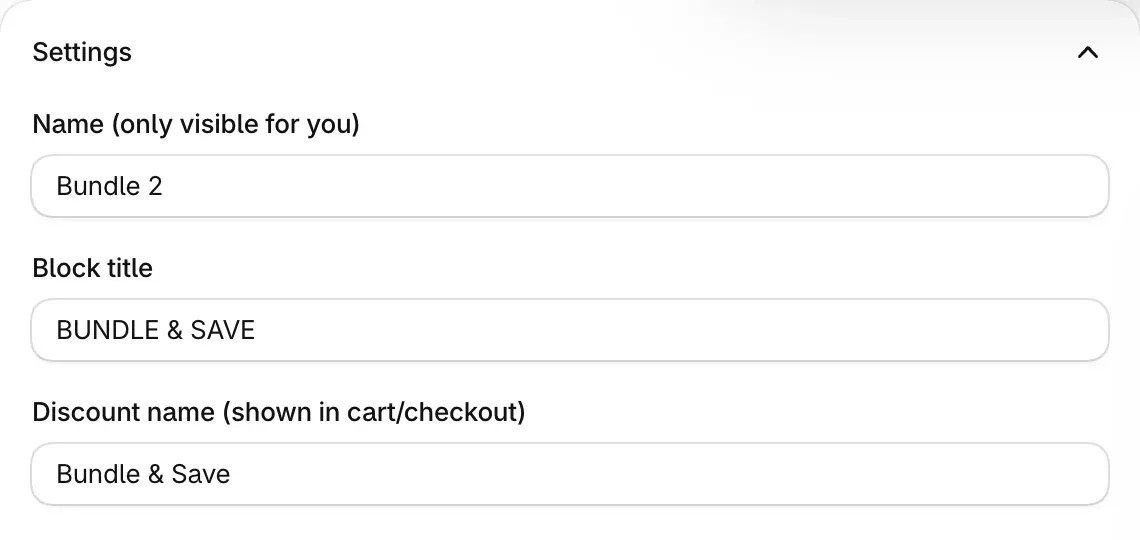
- Choose Publish, or Save on a live deal. The app writes the label into the deal's Shopify discount each time you save or publish.
- For other languages, choose Translations in the editor's header. Pick the Language, open the deal's section, translate the discount name and choose Save. Repeat for each language.
Check it on your store
Add an offer from the widget, open the cart and go to checkout. The label sits next to the discount on each discounted line. To see a translation, open your storefront in that language and check out again.
Good to know
- Only the quantity variables work here. Any other variable, such as
{{saved_percentage}}, is removed, because checkout has no prices or titles to fill in. Write prices out in words, or leave them to the widget. - Translations skip your primary language. Shoppers in your primary language, or in a language you did not translate, see the original. With no discount name, translate the bar titles instead.
- Change it in the app, not in Shopify admin. The discount in Shopify admin, Discounts is titled TreStack Bundles - followed by the deal's Name. That title is only visible to you, and the app writes the discount from the deal.
- Translations take room. A translated label adds to the deal's size limit of 10,000 bytes.
The full rules for the label are in How the discount is applied at checkout, and every variable is in Text variables.
Combine a deal with discount codes
Let shoppers use a Shopify discount code on top of a deal: the one setting to check on the code, how to test it at checkout, and what happens when two discounts reach the same item.
Translate a deal's texts
Translate a deal's titles, labels, badges and checkout label into your store's other languages on the Translations page, and reword the widget's built-in texts.