Set the variant each item starts on
Applies to: TreStack Bundles, every plan
Updated: 5 November 2026
- Set in: Settings, Variants, Set default variants
- Chosen: Per bar, per product, per item
- Used when: That variant can be bought
Without a default, each item in a bar starts on the variant the product page shows. A default variant starts an item on the value you choose instead, such as the size most of your shoppers buy.
Set it up
- In TreStack Bundles, open the deal and go to Settings, Variants.
- Choose Set default variants.
- In the window, pick a bar under Select bar to set its default variants. When the bar has several products, pick the product as well.
- Each item of the bar has a dropdown per option, such as Size or Color. Pick the value that item should start on. Default leaves the item as it is, and values with no stock are marked Unavailable.
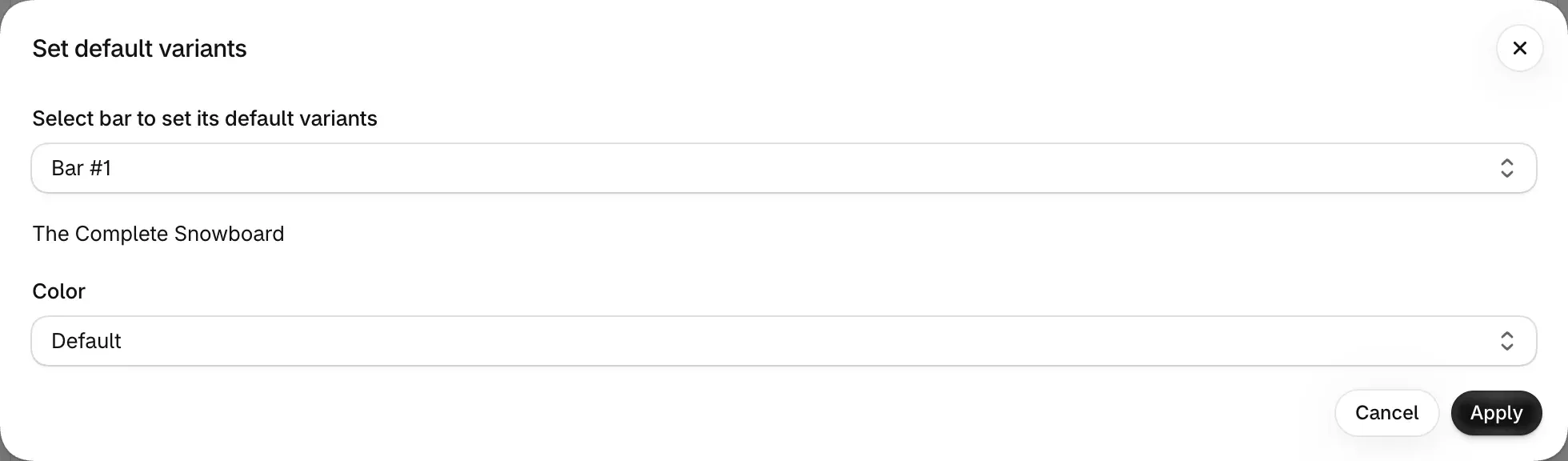
- Repeat for every bar that needs a default.
- Choose Apply to keep your choices.
- Save the deal, or choose Publish.
Check it on your store
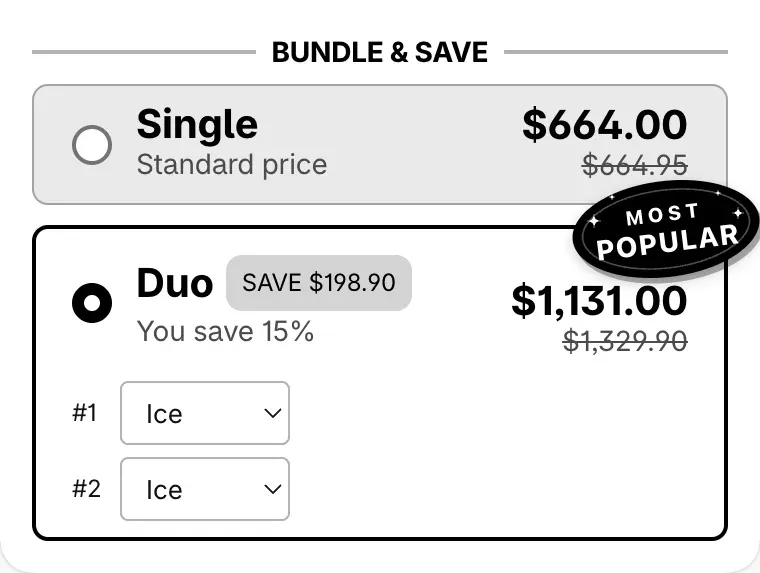
View in store shows only what is published, so publish first. Open a product page with the deal and select each bar: every item should start on the variant you set. Then try a product whose default variant is sold out: that item starts on the variant the page shows.
Good to know
- Sold out falls back. An item starts on its default only while that variant can be bought. When it cannot, or no default is set, it starts on the variant the page shows. Hide unavailable variant options, in the same section, keeps values with no stock out of the pickers.
- Bundle bars have their own setting. The products inside a bundle bar each have a Pre-selected variant, described on Bundles and mix and match.
- Other bars follow the first item. When a shopper picks a variant for a bar's first item, the other bars follow it, unless Don't update other products when a variant is selected is on.
- Copies keep them. Duplicate copies a deal with its default variants.
Every variant setting, swatches included, is in Variants, swatches and images.
Sell a deal as a subscription
Offer one-time or subscribe next to a deal, using the selling plans your subscription app puts on your products, and check how the deal's discount stacks on the plan's price.
Customize variant pickers and swatches
Let shoppers pick a different variant for each item, replace dropdowns with color, image or pill swatches, hide the theme's picker, and move the gallery with featured images.