Set up a quantity break deal
Applies to: TreStack Bundles, every plan
Updated: 5 November 2026
- Sells: More of the same product at a lower price per item
- Starts from: The Quantity breaks for the same product template
- Priced by: The quantity in the cart, at checkout
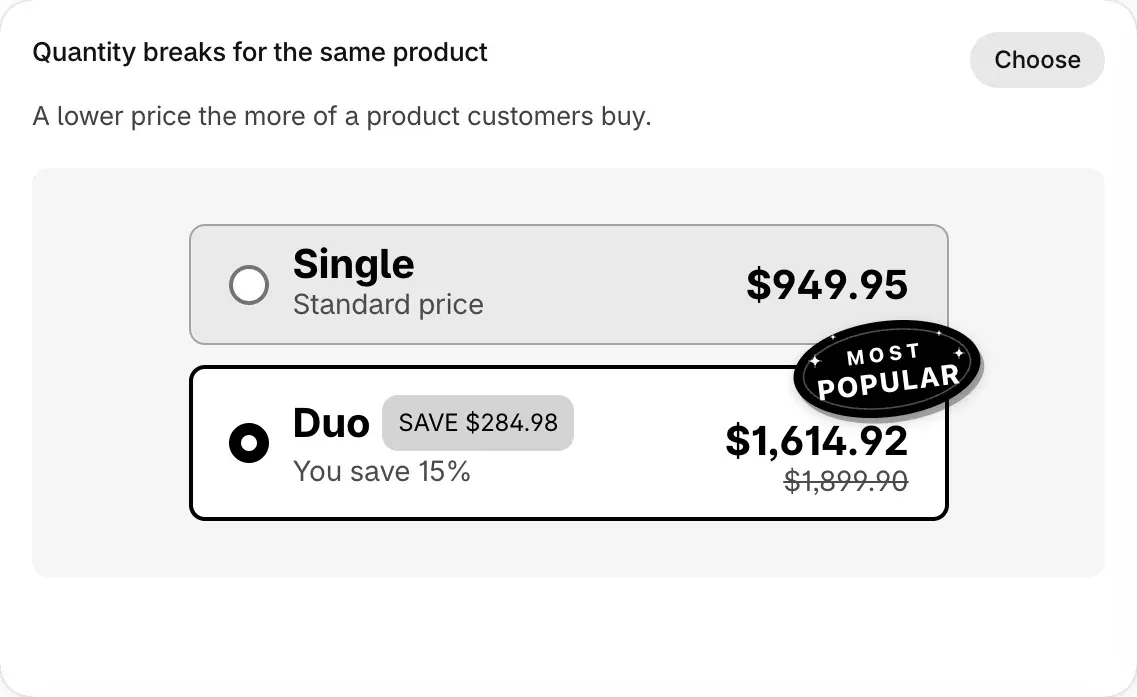
A quantity break shows a few offers above the Add to cart button, such as Single, Duo at 15% off and Trio at 25% off. The shopper picks one, and checkout gives the price of the largest offer the cart reaches.
Set it up
- In TreStack Bundles, choose Create bundle deal. On Choose a discount type, pick Quantity breaks for the same product.
- Open Products and choose where the deal shows: All products, Selected products or Selected collections.
- Open Deal bars. The template starts with two bars: Single at full price and Duo, 2 items at 15% off.
- To add an offer, choose Add bar, then Quantity break. A new bar starts one item above the largest quantity, at full price.
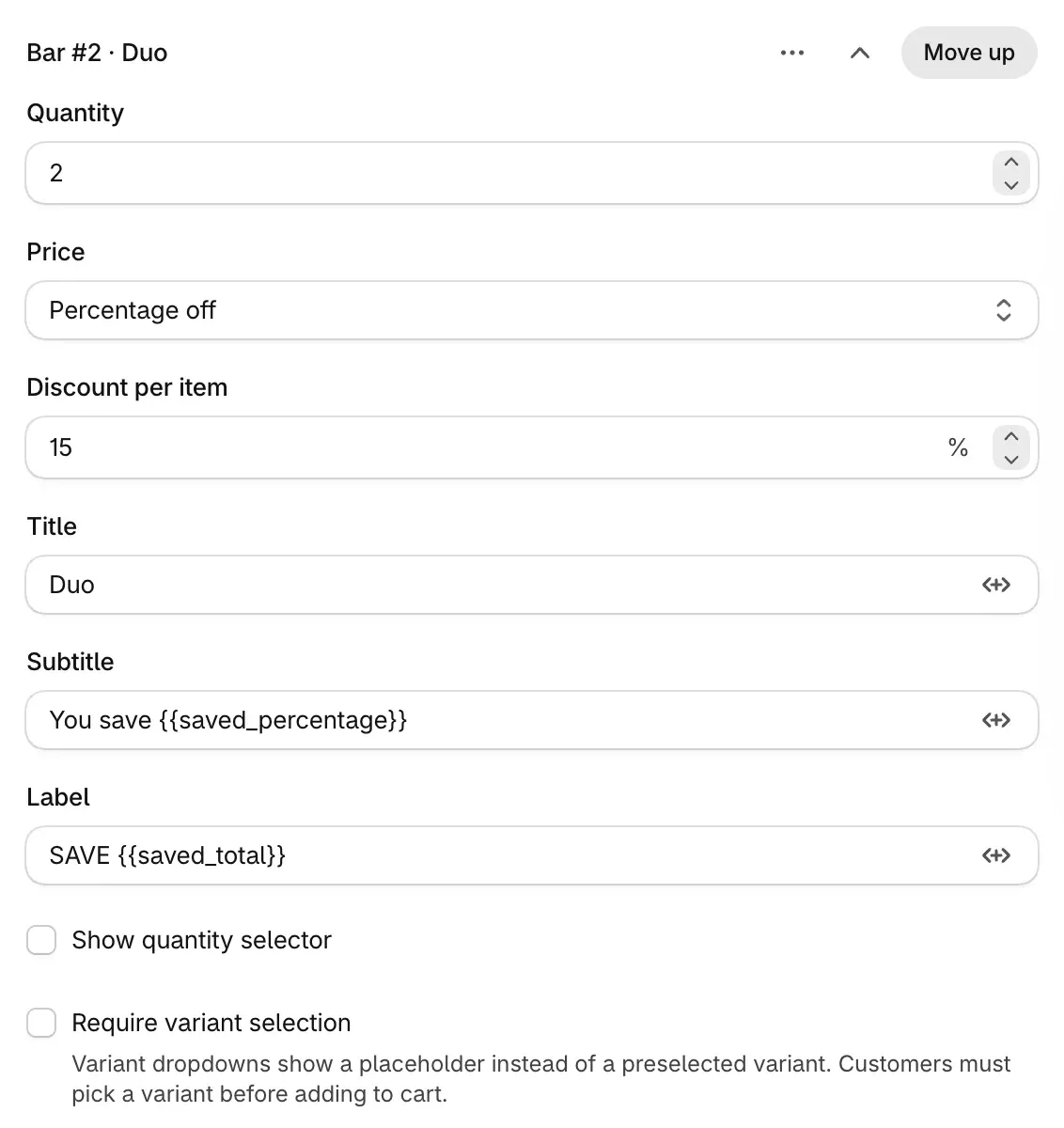
- On each bar, set the Quantity and the Price: Percentage off, Amount off, Fixed price for the whole bar, or Full price.
- Write the Title, Subtitle and Label. A variable such as
{{saved_percentage}}fills in the real saving. - Tick Selected by default on the bar shoppers should see selected when the page opens.
- Choose Publish.
Check it on your store
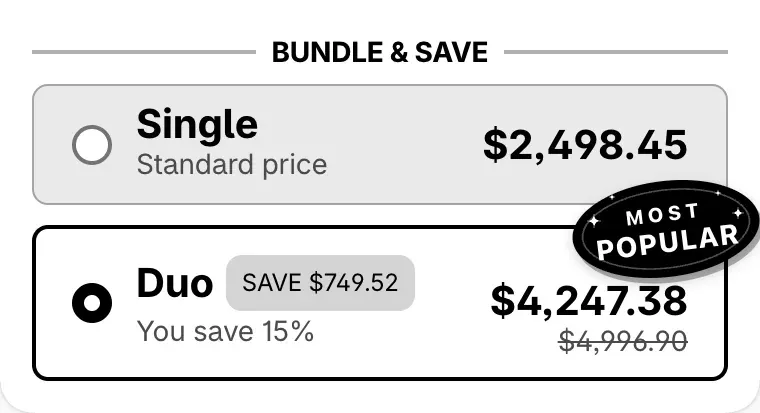
Open the product page: the bars sit above the Add to cart button. Pick each bar, add it to the cart and look at the price. Then change the quantity in the cart: the price follows the cart, so a shopper who picks Trio and lowers the cart to 2 items gets the Duo price.
Good to know
- Items added elsewhere count too. Items of the product added from a collection page or the theme's own button get the price as well. To discount only items added through the widget, turn on Apply discount only via bundle widget in Settings, Visibility.
- One deal per product. At checkout every published deal runs its own discount, so keep each product in one published deal.
- Above the biggest bar, the biggest bar's price applies to every item.
The full list of bar fields, and how Buy X, get Y bars differ, is in Quantity breaks and Buy X, get Y.
Common questions
Short answers to what merchants ask most about TreStack Bundles: prices and compare-at prices, checkout, the widget on your theme, deals, markets, A/B tests and analytics, each with the page that explains it in full.
Set up a Buy X, get Y deal
Sell a set of the same product with some items free or discounted, as in Buy 2, get 1 free: from the template to a published deal, and how checkout counts the sets.