Translate a deal's texts
Applies to: TreStack Bundles, every plan
Updated: 5 November 2026
- Built-in texts: English and 19 other languages, machine-translated
- Deal texts: Translated by you, one language at a time
- Where: The Translations page
The widget's own texts, such as FREE, Sold out and Choose, come built in for 20 languages and follow your storefront's language. Your deal's own texts, such as bar titles and badges, show in other languages only once you translate them.
Set it up
- Save the deal once. Then choose Translations in the editor's header, which opens the Translations page with this deal first. You can also open it from the app menu.
- Pick a language from the Language list. It holds your store's languages from Shopify, shown as "FR - French".
- Open the deal's section, "This deal's titles, subtitles, labels and badges.". Its count, such as "12 of 20 translated", shows how much is done.
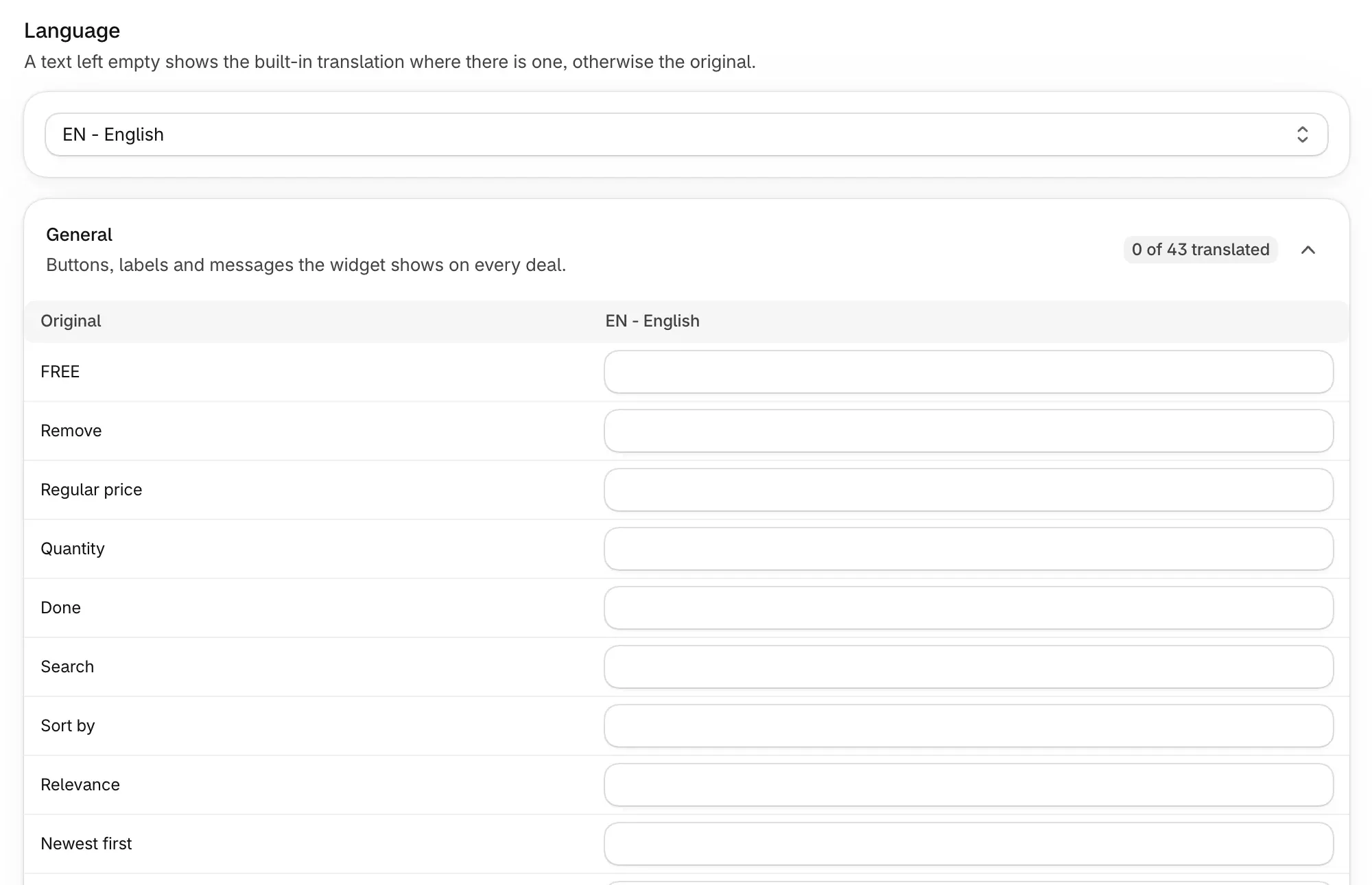
- Type each translation in the field beside its original. Keep variables such as
{{saved_percentage}}exactly as written in the original. - To reword a built-in text, open General. A change there applies in that language on every deal, and in your primary language too.
- Choose Save, or Discard to drop your changes.
Check it on your store
Open a product page from the deal on your storefront in the translated language and read each bar. Product names and option names, such as Color and Size, come from Shopify, so translate those with a translation app.
Good to know
- Variables are checked, not blocked. If they differ from the original, the field warns "Variables don't match the original." and names the ones to use, but it still saves.
- Empty means fallback. An empty field shows the built-in translation where there is one, otherwise the original. Deal translations never apply in your primary language.
- Editing the original undoes its translation. Change a title in the editor and translate the new text again. There is no automatic translation.
- Duplicate leaves translations behind. A copy starts with none, and removing a deal removes its translations.
Every rule for languages, labels and currencies is in Translations, currencies and markets.
Change the discount name shown at checkout
Set the label shoppers see next to the deal's discount in the cart and at checkout, which variables it can use, and how to show it in other languages.
Show a deal in one market, or price it differently there
Limit a deal to one Shopify market, leave markets out, or run a second deal with its own prices for one market, and how prices follow the shopper's currency.