Export deal analytics as CSV
Applies to: TreStack Bundles, every plan
Updated: 5 November 2026
- One row: Per day, per deal
- Follows: The deal filter and date range on the Analytics page
- Limit: 10 exports an hour
The Analytics page exports what its filters show as a CSV file, with one row for each day and each deal.
Set it up
- Open the Analytics page. From Home, select a figure in the Overview, or open a deal's Actions menu in the deal list and choose Analytics.
- In the bar at the top, set the Deal filter: "All bundle deals", or one deal.
- Set the Date range, such as Last 30 days, or Custom for up to 3 years. The "Last ... days" ranges end yesterday.
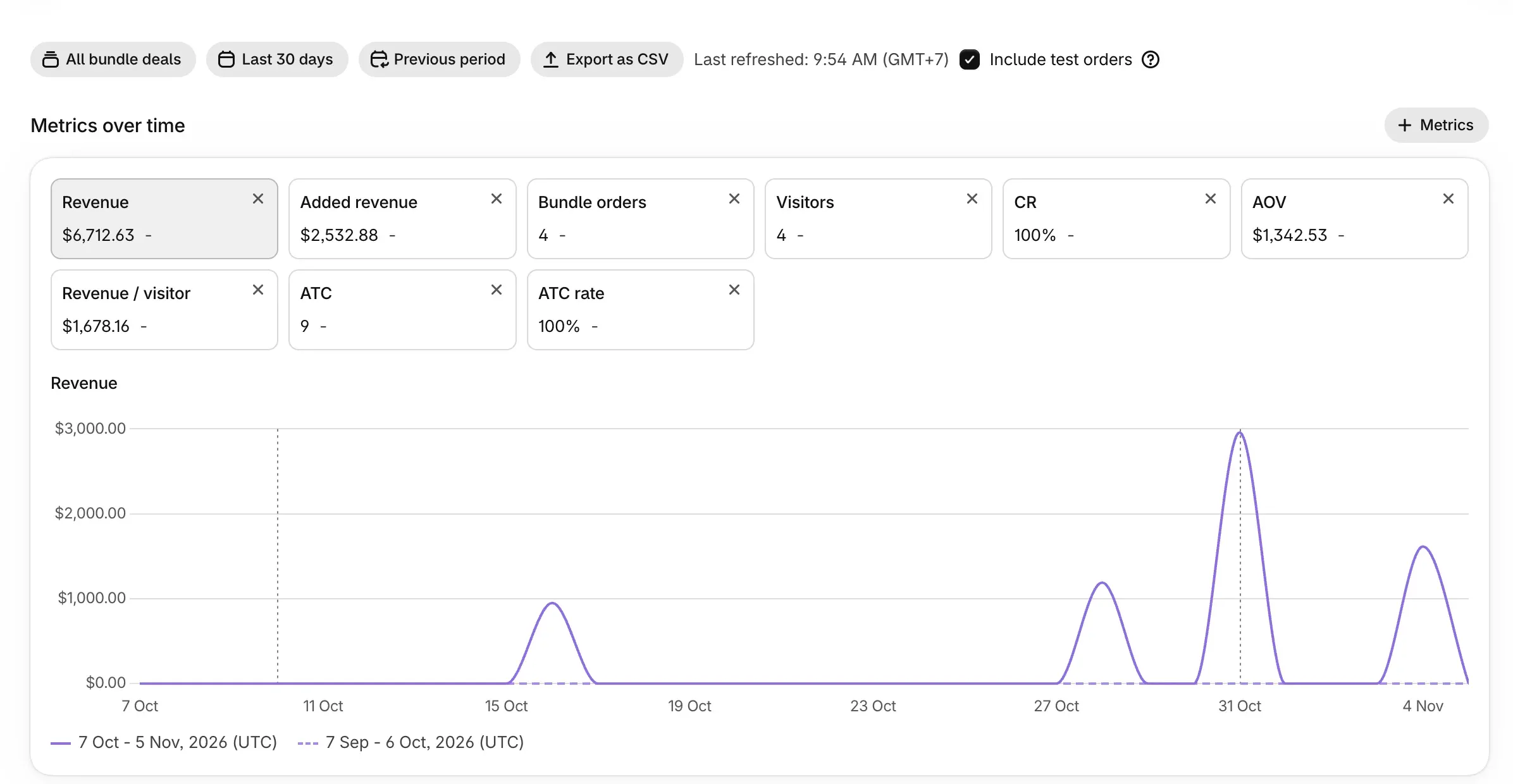
- Choose Export as CSV. If the range has nothing in it, the page says "No data to export for the selected period".
Read the result
Each row holds the date, the deal id and name, visitors, add to carts, add-to-cart rate, orders, bundle orders, conversion rate, revenue, added revenue, average order value, revenue per visitor, units, subscribed orders, profit and the currency. What each figure means is in Deal analytics.
Good to know
- Days run in UTC. They go from midnight to midnight UTC, not in your store's timezone, so an order late in the evening can land on the next day.
- Visitors count only shoppers who allow analytics. Orders count for every shopper, so the conversion rate reads higher when many shoppers decline.
- The numbers differ from Shopify reports. Revenue includes other lines of the deal's products in the same orders, leaves out tax and shipping, does not subtract refunds or cancellations, and counts test orders. Amounts are in your store currency. Use your Shopify reports for accounting.
- Up to 10 exports an hour. Pick the deal and range before you export.
The full list of figures and where they come from is in Deal analytics.
Run an A/B test on a deal
Test two to four versions of a deal against each other: set up the variants, choose the split, read the winner rule, and keep the version you choose.
Quantity breaks and Buy X, get Y
How quantity break and Buy X, get Y bars are priced, how the shopper can fill a bar with other products, and how the cart decides which bar applies.