Customize variant pickers and swatches
Applies to: TreStack Bundles, every plan
Updated: 5 November 2026
- Set in: Settings, Variants
- Swatch types: Eight, set per option name
- Theme picker and gallery: Only on the themes the widget knows
Variant pickers let shoppers choose sizes and colors inside the deal. They show only for products with more than one variant.
Set it up
- Open the deal. Under Product previewing, above the preview, click the product name and pick a product that has the options you want to style.
- Go to Settings, Variants. Turn on Let customers choose different variants for each item to give each item of a bar its own picker. Add Show variant selection for single quantity deal bar to give one-item bars a picker too.
- Turn on Hide theme variant picker to hide your theme's own picker. With different variants off, the widget then shows one shared picker instead.
- Turn on Hide unavailable variant options to leave out values that have no variant in stock.
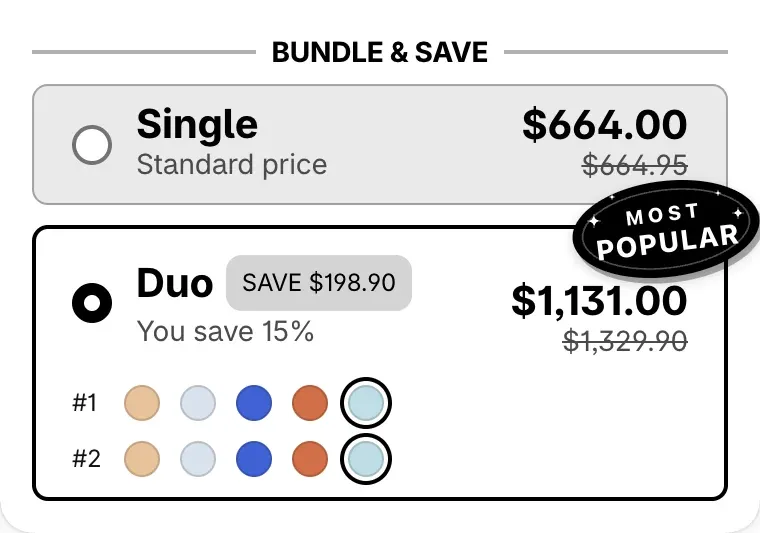
- Choose Add swatches (Edit swatches once you have some). In the window, choose an Option, such as Color, and give it a Type, such as Color swatch, Image swatch, Product image swatch or Pill buttons. Fill in the color or image each value asks for; the product image types need nothing more.
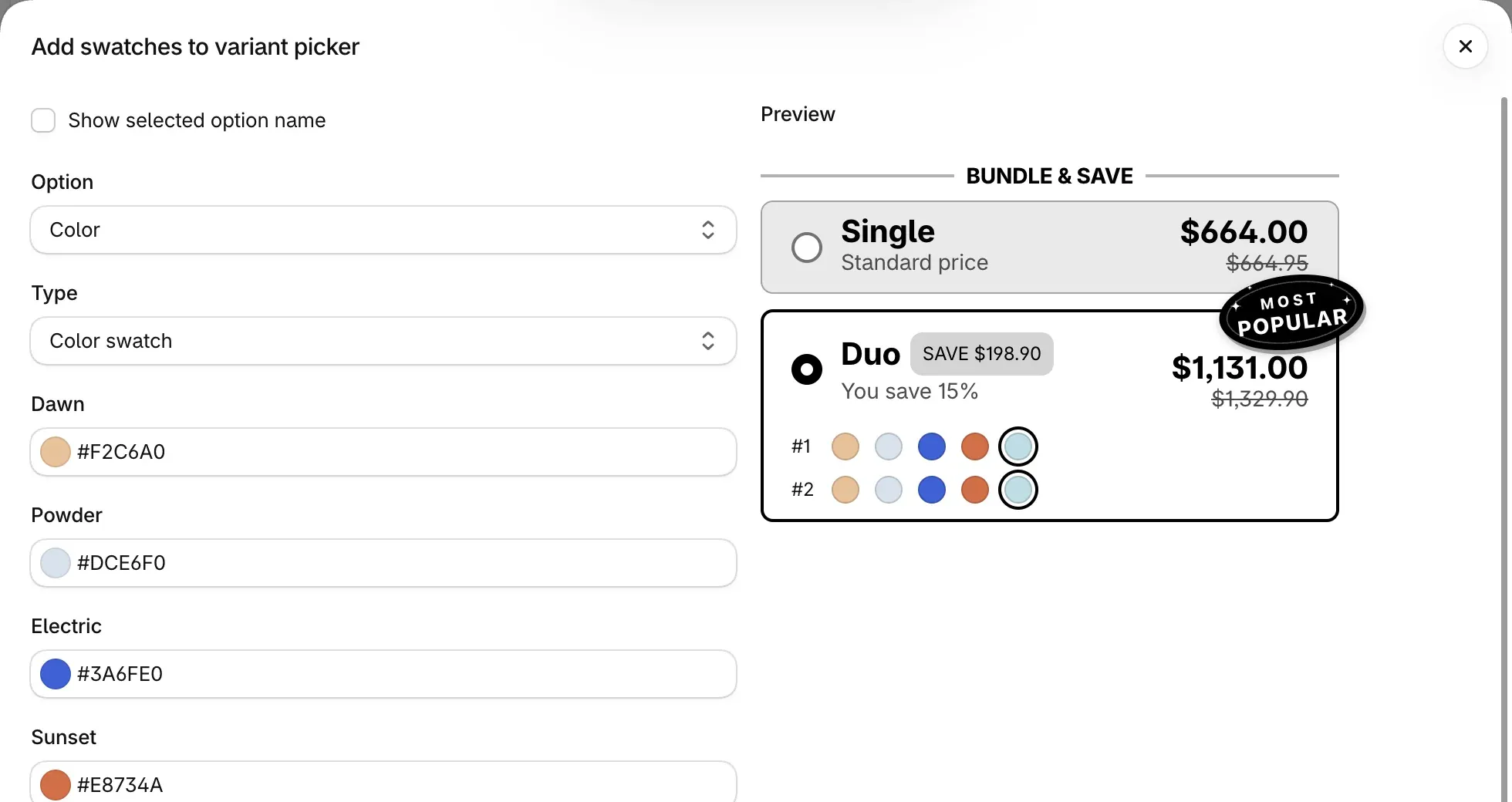
- Set Swatch shape, Swatch size and Show selected option name, then choose Apply.
- To move the product gallery with a bar, open the bar, choose Featured image and pick one of each product's own images.
- Save the deal, or choose Publish.
Check it on your store
Open a product page with the deal. Pick a value in each swatch row, and change the variant in your theme's picker if it still shows: on the themes the widget knows, the widget follows it. Then select a bar with a featured image and check that the gallery moves.
Good to know
- Known themes only. Hide theme variant picker, and keeping the theme's picker and the widget in step, work only on the themes listed on Theme compatibility and placement.
- Gallery switching works only on the Dawn family, Horizon, Impact, Prestige and Warehouse. On other themes nothing happens when the bar is selected.
- Swatches follow the option name for the whole deal. Where a storefront language translates the name, such as Color, that option shows the plain dropdown.
The eight swatch types and every variant setting are in Variants, swatches and images.
Set the variant each item starts on
Choose the size or color each item of a deal bar shows when the page opens, and what happens when that variant is sold out.
Show compare-at prices on a deal
Strike through your products' compare-at prices in the deal bars, why a compare-at price may not show, and why checkout still discounts the real price.