Give a volume discount across different products
Applies to: TreStack Bundles, every plan
Updated: 5 November 2026
- Sells: Any mix of products you allow, at a lower price per item
- Starts from: The Quantity breaks for different products template
- Counts: Items chosen through the Choose pop-up, at checkout
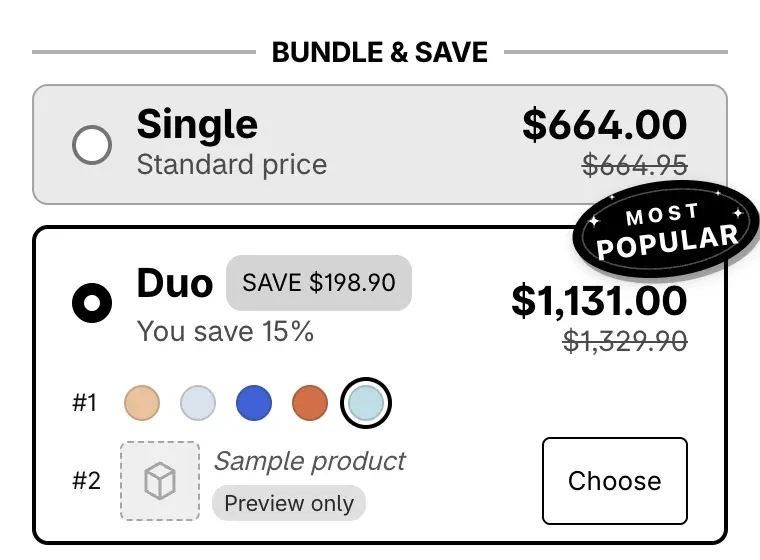
Volume discount with other products lets the shopper fill a quantity break bar with other products, as in "any 3, save 15%". Each item after the first gets a Choose button, and the quantity counts across everything the shopper picks.
Set it up
- In TreStack Bundles, choose Create bundle deal. On Choose a discount type, pick Quantity breaks for different products. It starts with two bars, 1 pack and 2 pack at 15% off, and with Volume discount with other products on.
- Open Products and choose where the deal shows: All products, Selected products or Selected collections.
- Open Deal bars. For "any 3, save 15%", choose Add bar, then Quantity break, and set the Quantity to 3 and the Price to Percentage off, with 15 as the Discount per item.
- Open Volume discount with other products. Under Eligible for bundling, choose which products the pop-up offers: Same products as deal visibility, All products except selected, Products in selected collections, or Selected products.
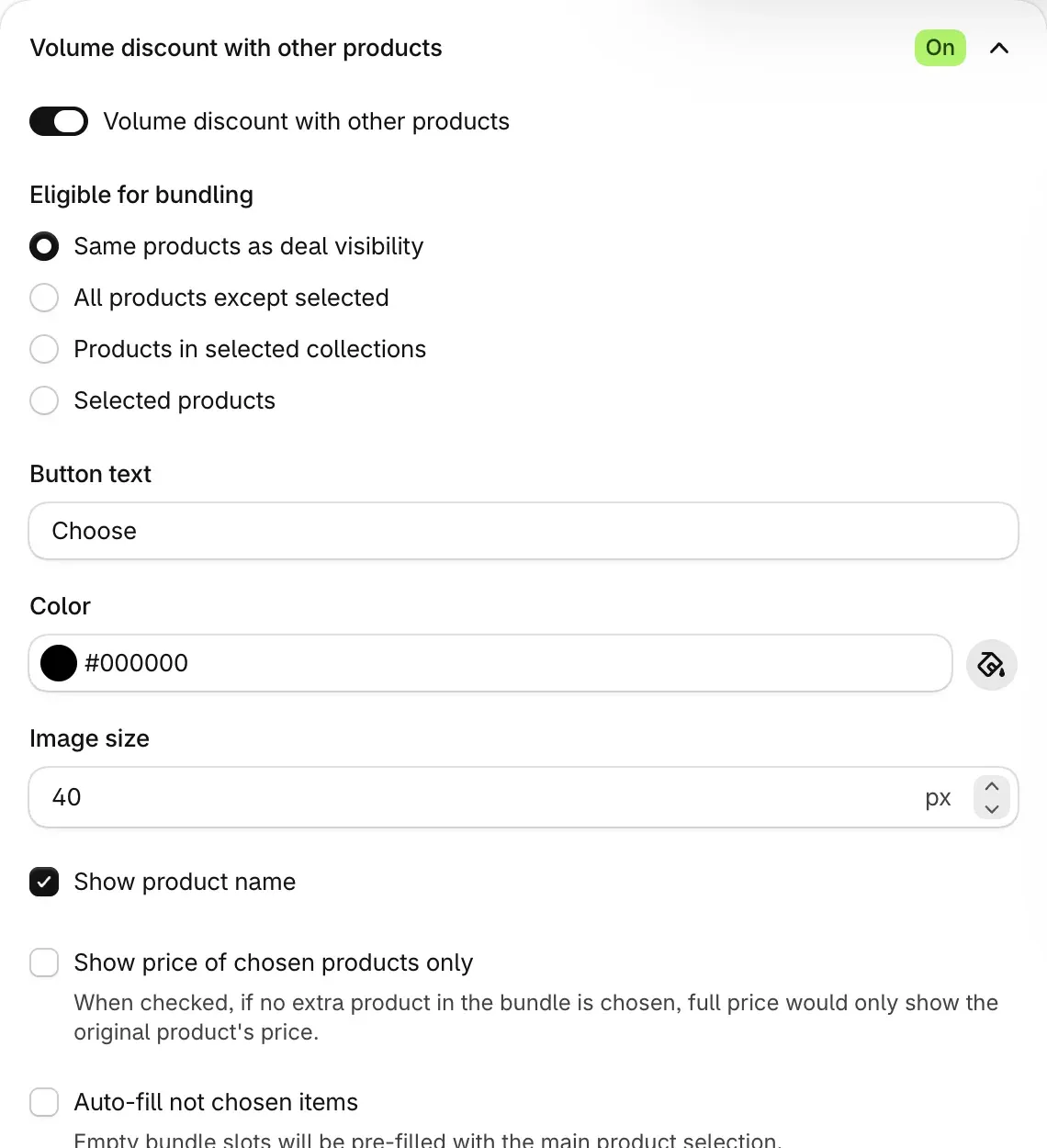
- Set the button's text (Choose by default) and color, then pick the options you want: Show product name, Show price of chosen products only, Auto-fill not chosen items and Require item selection to complete bundle purchase.
- To change the pop-up's heading, texts, Default sort or search field, open Customize "Choose product" modal.
- Choose Publish.
Check it on your store
Open the product page. Every bar of 2 items or more shows the page's product as its first item and a Choose button for each item after it. Choose a product and its variant in the pop-up, add the bar to the cart and check the price.
Good to know
- Only the pop-up counts across products. The same products added from their own pages, or with the theme's Add to cart, are counted on their own and do not join the set.
- The page's product must stay in the cart for the chosen products to count with it.
- The pop-up lists up to the first 1,000 products of the store.
- Buy X, get Y bars work too. With the section on, they fill the same way as quantity break bars.
The full list of options in this section is in Quantity breaks and Buy X, get Y.
Set up a Buy X, get Y deal
Sell a set of the same product with some items free or discounted, as in Buy 2, get 1 free: from the template to a published deal, and how checkout counts the sets.
Sell a bundle of different products
Sell the page's product together with other products: a Product bundle bar with a price per product, or a Mix & Match bar with one price for a set the shopper can change.