Show a deal in one market, or price it differently there
Applies to: TreStack Bundles, every plan
Updated: 5 November 2026
- Set in: The deal's Settings section, Visibility
- Choices: All markets, one market, or All with excluded markets
- Enforced: By Shopify at checkout and by the widget
A deal set to one market shows only to shoppers in that market, and Shopify applies its discount only there. To charge different prices in one market, run a second deal for it.
Set it up
- Open the deal in the editor, open Settings and go to its Visibility part.
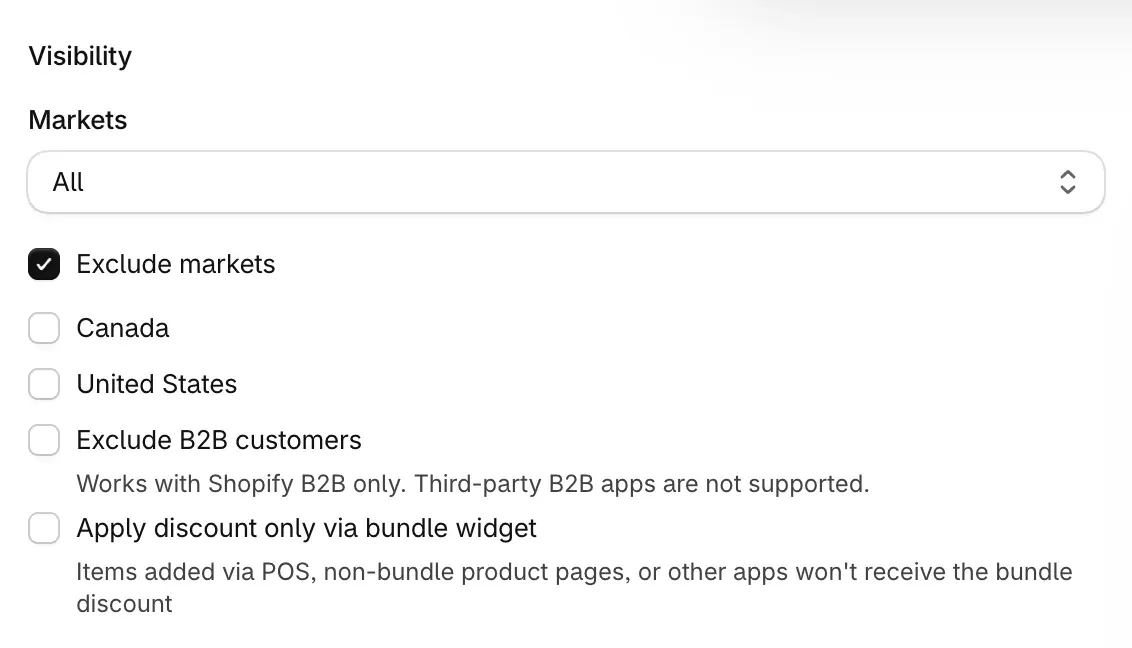
- Set Markets to one of your Shopify markets. Or keep All, tick Exclude markets and choose the Excluded markets where the deal should not show or apply.
- When the market you picked has its own currency, the deal's amounts are entered in that currency. If the app cannot read its exchange rate, the editor says so, for example "Could not read the EUR exchange rate: amounts are in USD".
- Choose Publish.
To price one market differently:
- On your main deal, keep Markets at All and add that market under Excluded markets. Publish it.
- Choose Duplicate in the main deal's Actions menu. On the copy, set Markets to that market, change the prices on its bars, rename it and publish it. The editor warns that the products are in another deal; step 5 is what keeps the two apart.
Check it on your store
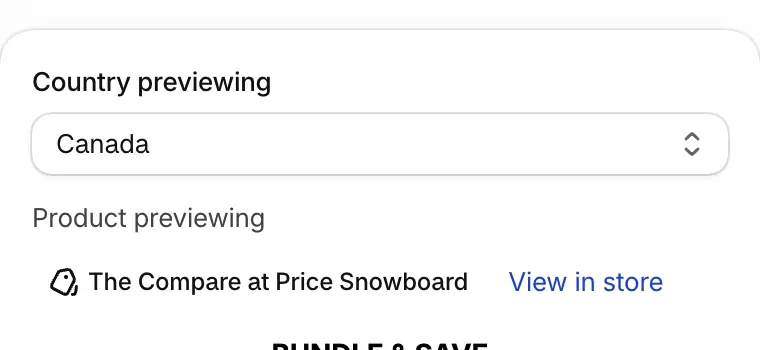
In the editor, Country previewing above the preview shows the widget's prices in another country's currency. Then open the product page from that market on your storefront and add an offer to the cart.
Good to know
- The market deal wins in the widget. When two deals target one product, a deal set to the shopper's market shows before an all-markets deal. At checkout, though, every published deal runs its own discount, which is why step 5 excludes the market from the main deal.
- Currency conversion. Amounts in your store currency are converted with Shopify's rate for the shopper's currency, and the widget shows what checkout charges. In a one-market deal, amounts are exact in that market's currency and converted for anyone else.
- Rounding happens in the shopper's currency. That covers the price rounding from Settings, Pricing.
- No rate, no discount. If no usable rate exists, the shopper gets no discount and sees full prices, never a wrong price.
Every visibility rule is in Products, dates and visibility, and currencies in Translations, currencies and markets.
Translate a deal's texts
Translate a deal's titles, labels, badges and checkout label into your store's other languages on the Translations page, and reword the widget's built-in texts.
Run an A/B test on a deal
Test two to four versions of a deal against each other: set up the variants, choose the split, read the winner rule, and keep the version you choose.