Match deals to your store's colors and fonts
Applies to: TreStack Bundles, every plan
Updated: 5 November 2026
- Brand colors: 11, shared by every deal
- Fonts: Your theme's own, nothing extra loaded
- Set in: Brand colors, and Style in the deal
Brand colors are your store's colors, set once for every deal. A deal color linked to one follows every later change to it. Fonts come from your theme, so the widget adds no font download to your pages.
Set it up
- On Home, choose Brand colors. The window, Brand your bundle deals, reads the colors from your theme the first time it opens. If it cannot, set them by hand.
- Check the 11 colors under Neutrals, Accents, Badge and Alerts, correct any, and choose Save. Rescan brand colors reads the theme again, once every 30 minutes at most.
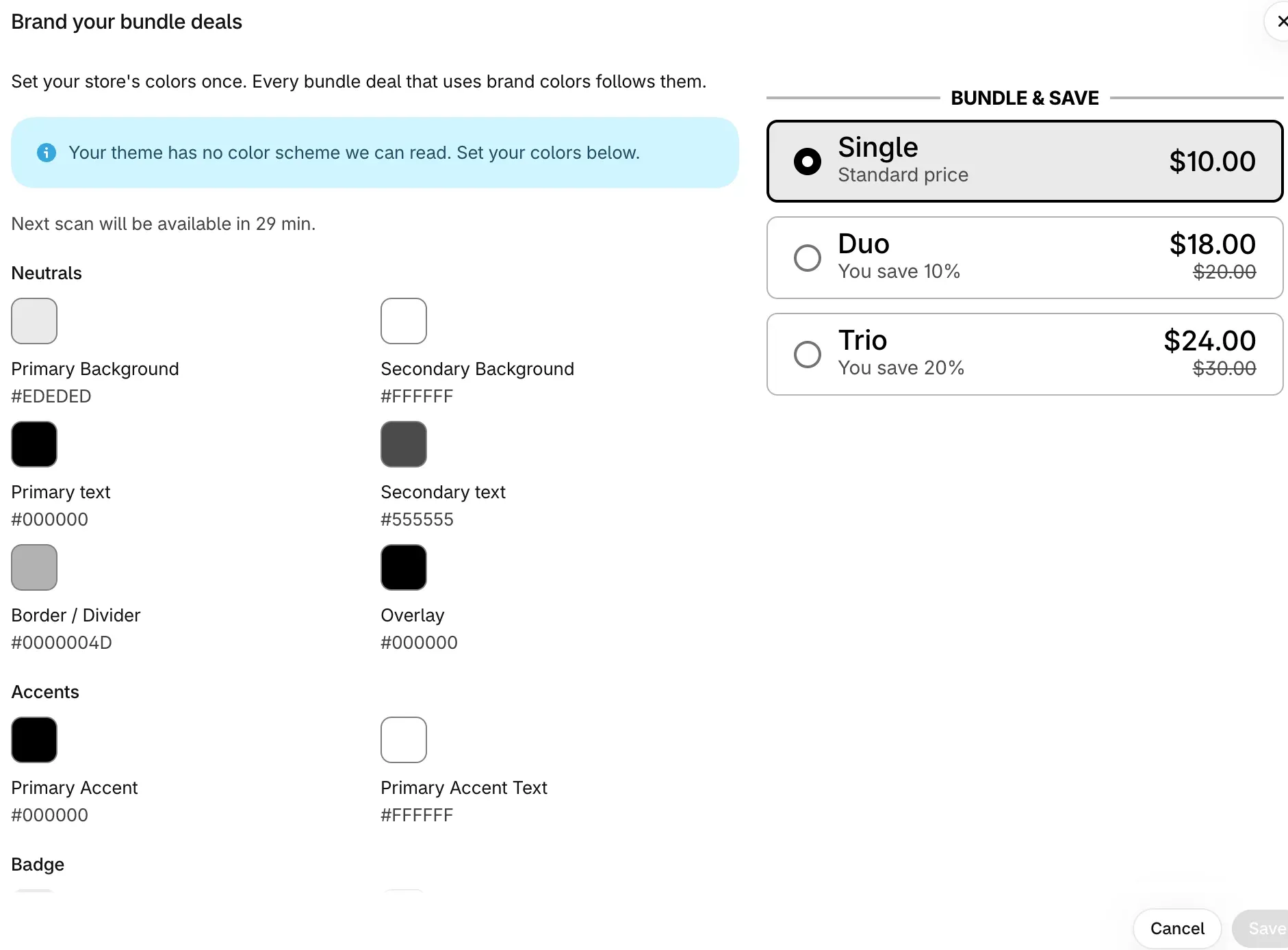
- For a new deal, pick Brand in the row of colors above the templates on Choose a discount type.
- For a deal you already have, open it and choose Brand colors in the editor's header, then Save & apply to bundle deal. To link a single color instead, use the Brand colors button next to that color field; the field then names the one it uses, such as "Brand color: Primary Accent".
- In Style, under Typography, pick a Font: Theme default or another font your theme already uses.
- Set the size (8 to 72 px) and style, from Light to Bold Italic, for Block title, Title, Subtitle, Label, Free gift, Upsell and Unit label.
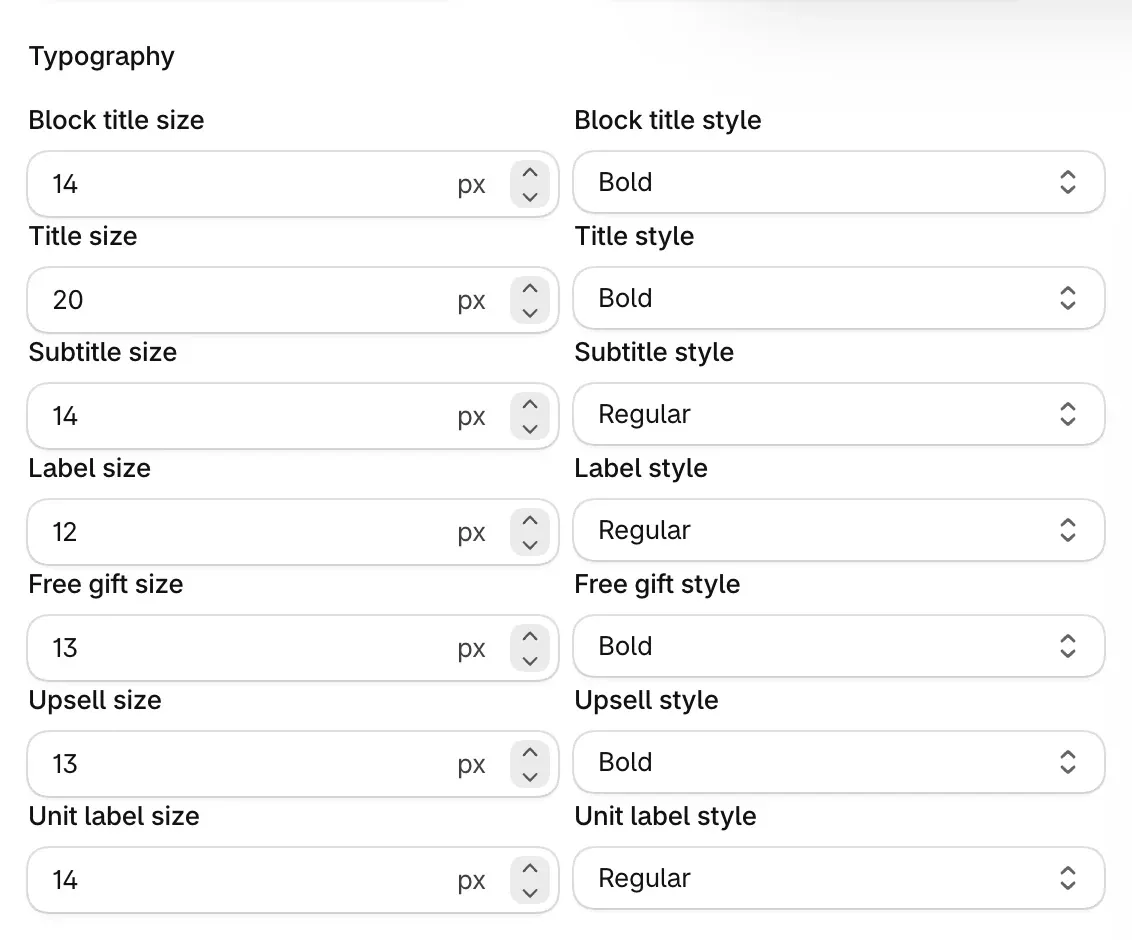
- Save the deal, or choose Publish.
Check it on your store
Read the preview with a few products, then open View in store after you publish, on a phone and a computer. The widget should use your colors and your theme's font.
Good to know
- One change reaches every linked deal. Before you save a brand color change, the window says how many deals it reaches.
- Save & apply changes the open deal only, and like any edit it reaches your store when you save or publish that deal.
- The Font field is missing when your theme has fewer than two fonts to choose from. "Preview font may differ." means the editor could not load the font for the preview; the storefront uses your theme's.
- Some parts have their own colors and sizes: the countdown timer, the savings summary and the sticky bar are set in their own sections.
Layouts, every color group and custom CSS are in Designing a deal.
Round prices and remove decimals
Show deal prices as whole amounts, or make them end in .99, .95 or another ending, and what checkout charges in each case and in each currency.
Move the widget or show it in another section
Place the deal widget where you want it on the product page, or show a product's deal on another page such as the home page, with the Bundle deal app block.